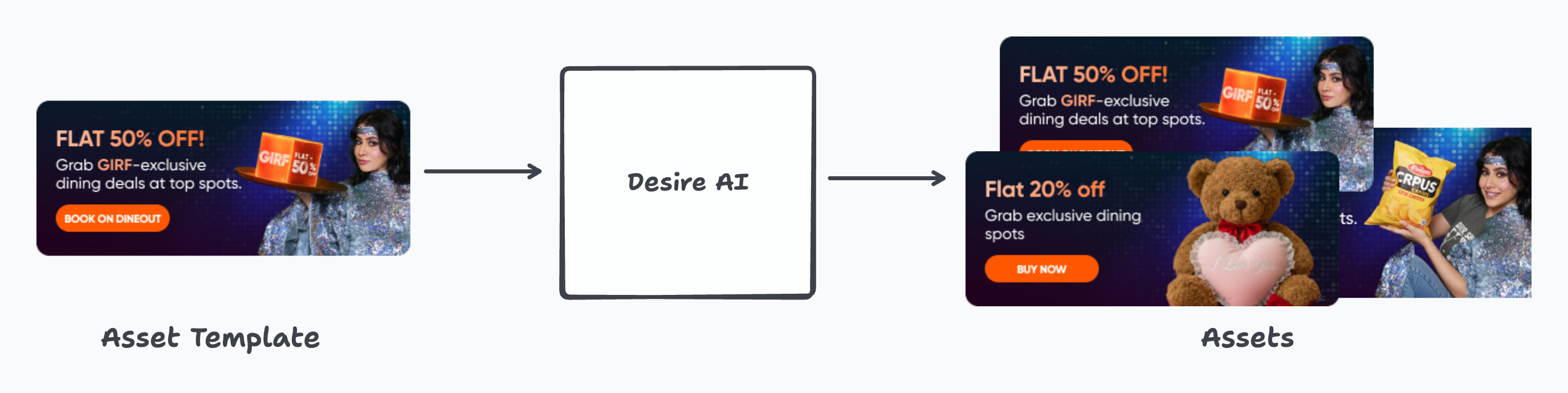
# Asset Template
Asset Templates are what Desire consumes to modify and scale based on user inputs to produce assets.
**But what exactly are Asset Templates and how are they used?**
An Asset Template is, simply put, a Figma file that follows a standardised naming convention. Once such a Figma file is prepared, it can be registered into Desire through an application. When it is time to create actual assets, Desire automagically creates clones of this template, modifies Figma nodes based on naming conventions, registers the cloned Figma into its database and also exports the banners.
### Figma File and Node naming conventions
Asset Template files on Figma should have just one banner template.
For example, this is a valid Figma file
Desire supports the following nodes today:
* **Hero Text**: Name the TEXT node `hero-text` to update the primary headline text.
* **Secondary Text**: Name the TEXT node `secondary-text` to update the subheading
* **CTA**: Name the TEXT node `cta` to update the call-to-action text.
* **Product Image**: Name the product image node `product-image` to update the product image.
* **Background Image**: If the asset uses an image as its background, name the background image node `background` to update the background.
* **Brand Logo Image**: Name the brand logo image node `brand-logo` to update the brand logo.
### Managing Asset Templates
You can manage Asset Templates by accessing the application by selecting **Asset Templates** from the [Landing Page](https://docs.desire.acik.in/basics/landing-page) (Click the Home icon in the sidebar).
Asset Templates are grouped by [Themes](https://docs.desire.acik.in/basics/themes), which in turn are grouped by [Verticals](https://docs.desire.acik.in/basics/verticals). So, the application allows you to first select a Vertical, following which, you can select one of the Themes under it. This will list all the Asset Templates for the theme.
Click on any Asset Template to view its information or to edit it.
The following sections appear for an existing Asset Template:
**Vertical** - The Vertical to which this Asset Template belongs
**Theme** - The Theme to which this Asset Template belongs
**Asset Template Name** - The name of the current Asset Template
**Figma URL** - The URL of the Asset Template. Please note that Desire should be authorised to read your Figma files. Discuss with your Super Admin in case of issues.
**Asset Image** - This shows an image of the Asset Template. If Desire is able to read the Figma file, this image should appear.
**Description** - An optional description of the Asset Template
#### Creating Asset Templates
Click on **New Asset Template**, and fill in the fields based on the description above. If Desire has the right permissions, the image of the Asset Template should appear under the Asset Image section.
---
# Agent Instructions: Querying This Documentation
If you need additional information that is not directly available in this page, you can query the documentation dynamically by asking a question.
Perform an HTTP GET request on the current page URL with the `ask` query parameter:
```
GET https://docs.desire.acik.in/basics/asset-templates.md?ask=
```
The question should be specific, self-contained, and written in natural language.
The response will contain a direct answer to the question and relevant excerpts and sources from the documentation.
Use this mechanism when the answer is not explicitly present in the current page, you need clarification or additional context, or you want to retrieve related documentation sections.